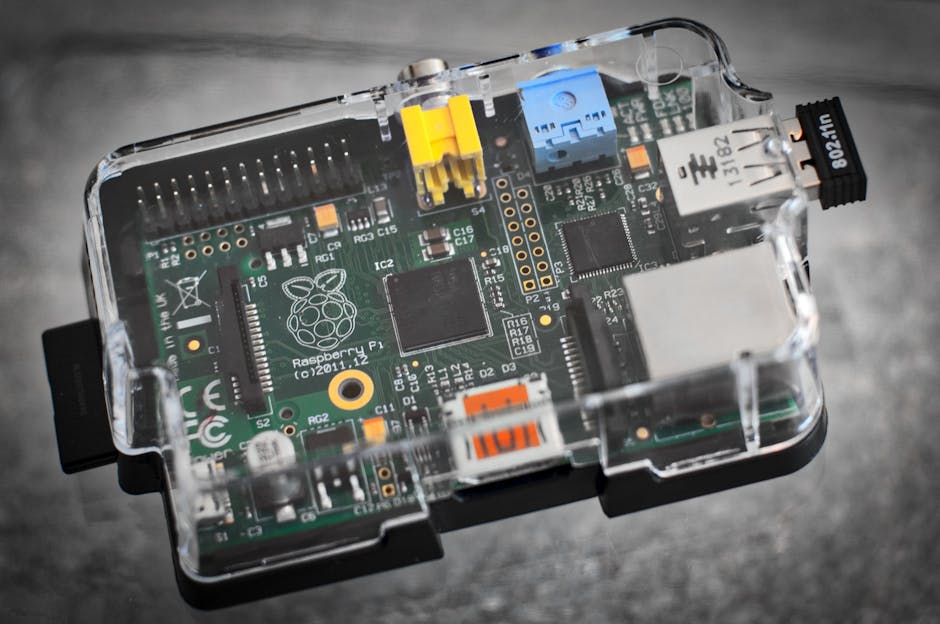
- LTE USB Modems + 2 Raspberry Pis: Reliable Headless Clicker
- Headless Chromium Clicker on Raspberry Pi with LTE Failover
- Scale 4k Clicks: Dual-Pi LTE Clicker & Watchdog Guide
Summary
This guide shows how to build a low-cost, reliable testbed that uses two Raspberry Pis and two USB LTE modems to run a headless Chromium (Puppeteer) clicker that can perform thousands of UI clicks (example: 4,000 iterations) with network redundancy and a watchdog. Advantages:
- Cheap, independent cellular networks for uninterrupted remote access and to avoid single‑link outages.
- Separation of concerns: one Pi runs the clicker, the other is a watchdog / alternate network endpoint.
- Repeatable, scriptable headless Chromium clicks with robust error handling and automatic recovery.
Only run this against systems you own or have explicit permission to test.
Parts / tools (minimalist)
- 2 x Raspberry Pi (3/4/Zero 2W) with microSD cards
- 2 x USB LTE modems (or mobile hotspots that present USB network)
- Power supplies / USB cables
- microSD images with Raspberry Pi OS Lite
- Optional: smart plug or remotely controllable USB power switch (for hard power cycling)
- Laptop for initial setup, SSH access
High-level design
- Pi-A ("clicker"): runs Node.js + Puppeteer (Chromium) headless and performs the click loop.
- Pi-B ("watchdog"): monitors Pi-A and network; can restart services, switch LTE modem, or power-cycle devices via a smart plug/ssh.
Setup: base OS & packages
On both Pis:
-
Flash Raspberry Pi OS Lite, enable SSH (create empty file ssh in boot).
-
Update: sudo apt update && sudo apt upgrade -y
-
Install Chromium, Node.js prerequisites, and network helpers: sudo apt install -y chromium-browser curl usb-modeswitch modemmanager network-manager
-
Install Node (example Node 18 LTS): curl -fsSL https://deb.nodesource.com/setup_18.x | sudo -E bash - sudo apt install -y nodejs build-essential
Notes: some distros call Chromium binary /usr/bin/chromium-browser or /usr/bin/chromium. Adjust executablePath below.
Clicker: Puppeteer script
On Pi-A, create a project and install puppeteer: cd ~ mkdir clicker && cd clicker npm init -y npm i puppeteer
Example clicker.js (save in project):
const puppeteer = require('puppeteer');
const URL = 'https://your.target.example/path';
const SELECTOR = '#button-id'; // change to your selector
const ITERATIONS = 4000;
const DELAY_MS = 500; // wait between clicks

(async () => {
const browser = await puppeteer.launch({
executablePath: '/usr/bin/chromium-browser',
args: ['--no-sandbox','--disable-dev-shm-usage','--window-size=1280,720']
});
const page = await browser.newPage();
await page.goto(URL, {waitUntil: 'networkidle2', timeout: 60000});

for (let i=1; i<=ITERATIONS; i++) {
try {
await page.waitForSelector(SELECTOR, {timeout: 10000});
await page.click(SELECTOR);
console.log(new Date().toISOString(), 'clicked', i);
// optional: wait for outcome or navigation
await page.waitForTimeout(DELAY_MS);
} catch (err) {
console.error(new Date().toISOString(), 'error on iteration', i, err.message);
await page.screenshot({path: `error-${i}.png`}).catch(()=>{});
// attempt recovery: reload page
try { await page.reload({waitUntil:'networkidle2'}); } catch(e){}
// small backoff
await page.waitForTimeout(2000);
}
}

await browser.close();
})();
Run to test: node clicker.js
Run as a service
Create /etc/systemd/system/clicker.service:
[Unit]
Description=Headless clicker
After=network-online.target

[Service]
User=pi
WorkingDirectory=/home/pi/clicker
ExecStart=/usr/bin/node /home/pi/clicker/clicker.js
Restart=on-failure
RestartSec=5
Environment=DISPLAY=:0

[Install]
WantedBy=multi-user.target
Enable & start: sudo systemctl daemon-reload sudo systemctl enable --now clicker.service sudo journalctl -u clicker -f
LTE modem basics & managing connections
Most USB LTE modems present a network interface after usb_modeswitch. Use NetworkManager to manage mobile connections:
- List devices: nmcli device status
- List connections: nmcli connection show
- Bring up a connection profile: nmcli connection up id ""
If your modem needs modeswitch you already installed usb-modeswitch. For flaky networks, set connection route metrics to prefer one interface over another: nmcli connection modify "" ipv4.route-metric 200
Net details vary by modem model — consult its docs. Test connectivity: ip addr show curl -sS https://ifconfig.co
Watchdog (Pi-B)
Pi-B will monitor Pi-A and respond. Simple approach: ping and SSH restart of service. Create /usr/local/bin/watchdog.sh:
#!/bin/bash
TARGET=192.168.1.50   # Pi-A IP or hostname
while true; do
if ! ping -c 3 -W 2 $TARGET >/dev/null; then
date "+%F %T - target down, attempting restart"
ssh -o ConnectTimeout=5 pi@$TARGET 'sudo systemctl restart clicker' || {
# fallback: power-cycle via smart plug CLI or call your power switch
echo "Remote restart failed — consider manual intervention"
}
fi
sleep 10
done
Make executable and run via systemd similarly.
If you have a smart plug with an API (or ADS1015 + relay on Pi-B), hook it into the script to power-cycle Pi-A.
Alternatives & trade-offs
- Single Pi vs dual Pi: single Pi is simpler and cheaper but no out-of-band recovery if it dies or network fails. Dual Pi adds complexity but dramatically improves reliability and remote recovery options.
- LTE USB modems vs Wi‑Fi/cabled network: LTE gives independent public IPs and mobility; cost is higher per-GB and latency higher. For local lab tests, Ethernet is cheaper and faster.
- Puppeteer (headless Chromium) vs Selenium/webdriver: Puppeteer is lighter for Chrome-specific automation and easier in Node.js; Selenium supports multiple browsers and languages if you need that.
- Running Chromium on Pi: Pi hardware is limited — headless mode reduces resource use, but very frequent full page reloads or heavy pages may exhaust memory. Use small viewport and re-use pages where possible.
Tips, pitfalls, gotchas
- Use --no-sandbox on Raspberry Pi when running as root-less; match executablePath to your Chromium binary.
- Puppeteer downloads a Chromium by default; you can save space by using system Chromium and setting executablePath.
- Cellular modems sometimes present multiple USB modes (storage vs modem) — usb_modeswitch is often required.
- Rate limits and remote anti-abuse: do not run high-frequency clicks against third-party services without permission.
- Log and screenshot on failures; those are invaluable for debugging flaky pages or selector changes.
Final notes
Test locally first (small iteration counts), verify selectors and navigation flows, then scale to 4k iterations. Use the dual-Pi approach when you need unattended, remote, long-running automation with higher reliability.
Parts & Tools
- Raspberry Pi 4 Model B
- Raspberry Pi 3 Model B+
- Raspberry Pi Zero 2 W
- microSD card 32GB
- USB microSD card reader
- 4G LTE USB modem
- Mobile WiFi hotspot
- Prepaid LTE SIM card
- Raspberry Pi power supply USB-C
- USB A to micro USB cable
- USB A to USB C cable
- Smart WiFi plug
- Remotely controllable USB power switch
- Laptop computer
- ADS1015 ADC breakout board
- 5V relay module
- Breadboard and jumper wires kit